PS5 APPP PS5 MAcheteSVG Yayımlandı Save Manager

Bu Konu Sayfasındaki Bilgiler

Konu Hakkında Merhaba, tarihinde PS5 Apps + PC Tools kategorisinde mctuna tarafından oluşturulan PS5 MAcheteSVG Yayımlandı Save Manager başlıklı konuyu okuyorsunuz. Bu konu şimdiye dek 1,668 kez görüntülenmiş, 68 yorum ve 44 tepki puanı almıştır...
Kategori Adı PS5 Apps + PC Tools
Konu Başlığı PS5 MAcheteSVG Yayımlandı Save Manager
Konbuyu başlatan mctuna
Başlangıç tarihi
Cevaplar
Görüntüleme
İlk mesaj tepki puanı
Son Mesaj Yazan Aeserion

mctuna

Choose your destiny
Yönetici
ADMİN
FORUMSAHİBİ
Mar 29, 2008
13,009
65,682
113
44
Siteye Git


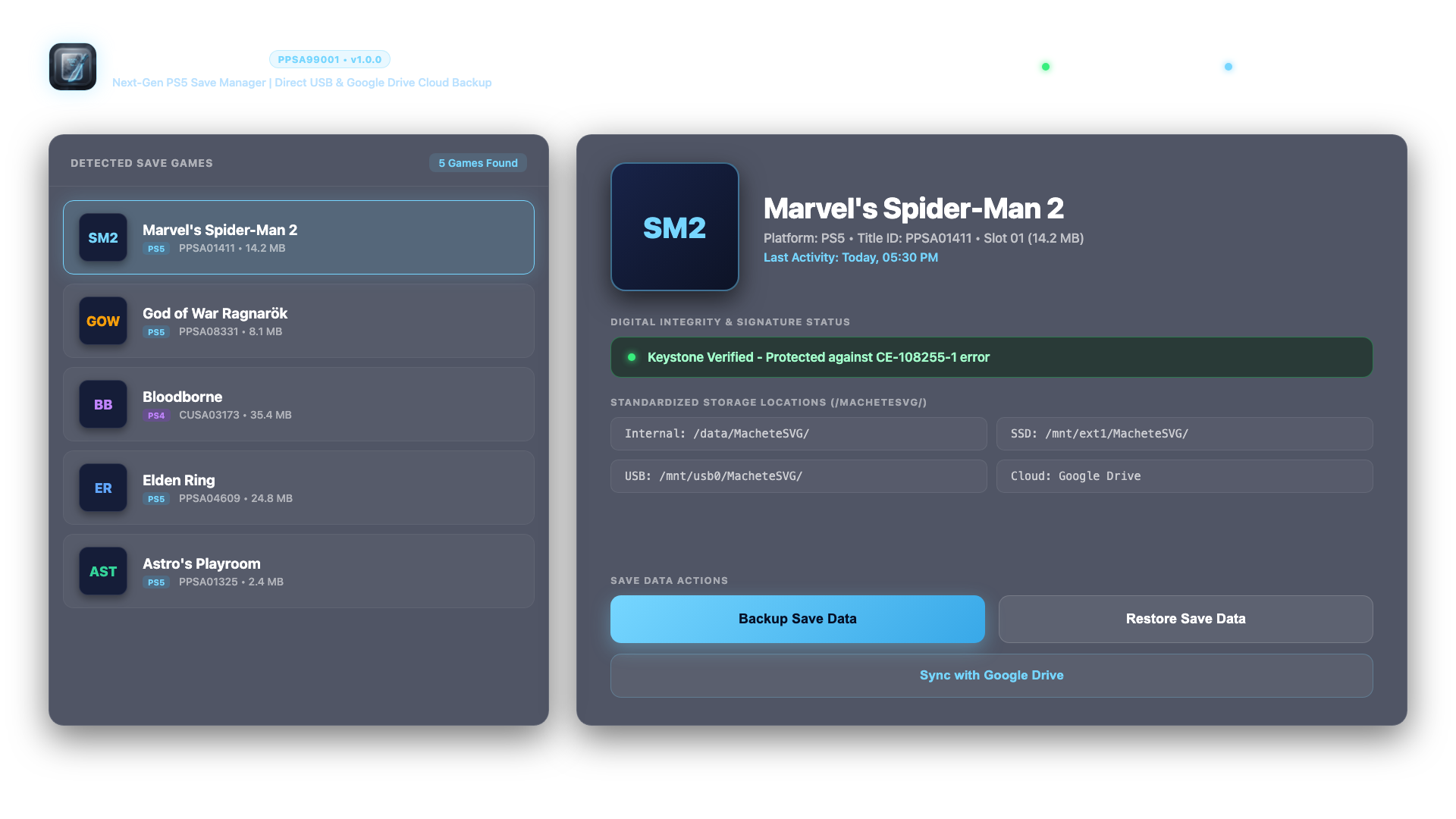
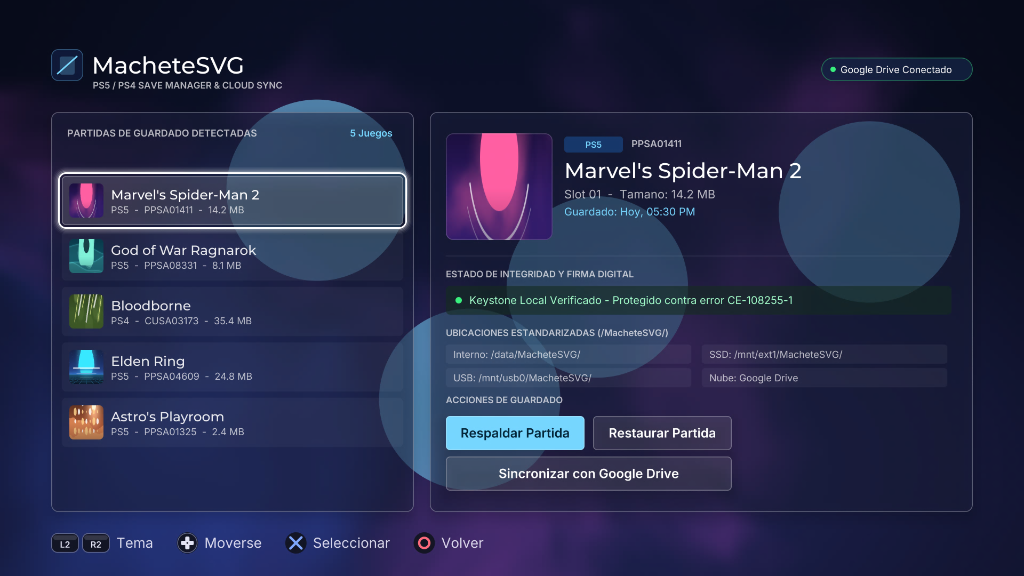
Uygulama ile oyunlarınızın kayıt dosyalarını yedekleyebilir ve geri yükleyebilirsiniz

FC 27 de transferler için henüz denemedim deneyen arkadaşlarımız olur ise bilgi verirlerse bilgilendirmeyi ilk mesaja ekleyeceğiz

DOWNLOAD
İçeriği görebilmek için mesaj yazmalı ve beğenmelisiniz. Saçma sapan mesaj yazarsanız forumdan uzaklaştırılırsınız.İçeriğe yazdığınız mesajlar moderatör tarafıncan onaylandıktan sonra indirme linklerini görebilirsiniz,mesajınız onaylanana kadar sabırla bekleyiniz,teşekkürler.
INSTALLATION INSTRUCTIONS:
METHOD 1: VIA FTP (Recommended)
1. Ensure your PS5 and computer are connected to the same local network.
2. Enable FTP server on your PS5 (e.g., via OnionHEN / etaHEN settings).
3. Connect using an FTP client (FileZilla, WinSCP, Cyberduck, etc.).
4. Upload the entire "PPSA99001" folder to:
/data/homebrew/
The resulting path must be:
/data/homebrew/PPSA99001/eboot.bin
5. Refresh your homebrew launcher (Itemzflow, ProsperoStore, or system menu).

METHOD 2: VIA USB DRIVE (exFAT)
1. Copy the "PPSA99001" folder to the root of an exFAT-formatted USB drive.
2. Insert the USB drive into your PS5.
3. Using a file manager (PS5-Explorer or Itemzflow), copy "PPSA99001" to /data/homebrew/.

CONTROLLER SHORTCUTS:
- D-Pad: Navigate game list and menus
- Cross (X): Select / Confirm action
- Circle (O): Cancel / Back
- Triangle: Open Google Drive Cloud synchronization directly
- Square: Refresh games list and connected USB devices
- L3 (Left Stick Click): Switch language (English / Spanish) in real-time​
 

Adem oztımur

Aktif Üyemiz
Kayıtlı Üyemiz
Ara 6, 2021
402
112
43


Uygulama ile oyunlarınızın kayıt dosyalarını yedekleyebilir ve geri yükleyebilirsiniz

FC 27 de transferler için henüz denemedim deneyen arkadaşlarımız olur ise bilgi verirlerse bilgilendirmeyi ilk mesaja ekleyeceğiz

DOWNLOAD
[Gizli içerik]

INSTALLATION INSTRUCTIONS:
METHOD 1: VIA FTP (Recommended)
1. Ensure your PS5 and computer are connected to the same local network.
2. Enable FTP server on your PS5 (e.g., via OnionHEN / etaHEN settings).
3. Connect using an FTP client (FileZilla, WinSCP, Cyberduck, etc.).
4. Upload the entire "PPSA99001" folder to:
/data/homebrew/
The resulting path must be:
/data/homebrew/PPSA99001/eboot.bin
5. Refresh your homebrew launcher (Itemzflow, ProsperoStore, or system menu).

METHOD 2: VIA USB DRIVE (exFAT)
1. Copy the "PPSA99001" folder to the root of an exFAT-formatted USB drive.
2. Insert the USB drive into your PS5.
3. Using a file manager (PS5-Explorer or Itemzflow), copy "PPSA99001" to /data/homebrew/.

CONTROLLER SHORTCUTS:
- D-Pad: Navigate game list and menus
- Cross (X): Select / Confirm action
- Circle (O): Cancel / Back
- Triangle: Open Google Drive Cloud synchronization directly
- Square: Refresh games list and connected USB devices
- L3 (Left Stick Click): Switch language (English / Spanish) in real-time​
Apollo save gibi birşey ise Süper olur bana çok lazım buna benzer uygulama yedek yükleme kadro yükleme ps5 için çok karmaşık
 

seqilcocuk

Foruma Destek Olan Üyemiz
DESTEK OLAN ÜYEMİZ
Ağu 29, 2023
606
280
63


Uygulama ile oyunlarınızın kayıt dosyalarını yedekleyebilir ve geri yükleyebilirsiniz

FC 27 de transferler için henüz denemedim deneyen arkadaşlarımız olur ise bilgi verirlerse bilgilendirmeyi ilk mesaja ekleyeceğiz

DOWNLOAD
[Gizli içerik]

INSTALLATION INSTRUCTIONS:
METHOD 1: VIA FTP (Recommended)
1. Ensure your PS5 and computer are connected to the same local network.
2. Enable FTP server on your PS5 (e.g., via OnionHEN / etaHEN settings).
3. Connect using an FTP client (FileZilla, WinSCP, Cyberduck, etc.).
4. Upload the entire "PPSA99001" folder to:
/data/homebrew/
The resulting path must be:
/data/homebrew/PPSA99001/eboot.bin
5. Refresh your homebrew launcher (Itemzflow, ProsperoStore, or system menu).

METHOD 2: VIA USB DRIVE (exFAT)
1. Copy the "PPSA99001" folder to the root of an exFAT-formatted USB drive.
2. Insert the USB drive into your PS5.
3. Using a file manager (PS5-Explorer or Itemzflow), copy "PPSA99001" to /data/homebrew/.

CONTROLLER SHORTCUTS:
- D-Pad: Navigate game list and menus
- Cross (X): Select / Confirm action
- Circle (O): Cancel / Back
- Triangle: Open Google Drive Cloud synchronization directly
- Square: Refresh games list and connected USB devices
- L3 (Left Stick Click): Switch language (English / Spanish) in real-time​
Teşekkürler
 

asigenc2763

Kayıtlı Üye
Kayıtlı Üyemiz
Kas 3, 2013
211
67
28


Uygulama ile oyunlarınızın kayıt dosyalarını yedekleyebilir ve geri yükleyebilirsiniz

FC 27 de transferler için henüz denemedim deneyen arkadaşlarımız olur ise bilgi verirlerse bilgilendirmeyi ilk mesaja ekleyeceğiz

DOWNLOAD
[Gizli içerik]

INSTALLATION INSTRUCTIONS:
METHOD 1: VIA FTP (Recommended)
1. Ensure your PS5 and computer are connected to the same local network.
2. Enable FTP server on your PS5 (e.g., via OnionHEN / etaHEN settings).
3. Connect using an FTP client (FileZilla, WinSCP, Cyberduck, etc.).
4. Upload the entire "PPSA99001" folder to:
/data/homebrew/
The resulting path must be:
/data/homebrew/PPSA99001/eboot.bin
5. Refresh your homebrew launcher (Itemzflow, ProsperoStore, or system menu).

METHOD 2: VIA USB DRIVE (exFAT)
1. Copy the "PPSA99001" folder to the root of an exFAT-formatted USB drive.
2. Insert the USB drive into your PS5.
3. Using a file manager (PS5-Explorer or Itemzflow), copy "PPSA99001" to /data/homebrew/.

CONTROLLER SHORTCUTS:
- D-Pad: Navigate game list and menus
- Cross (X): Select / Confirm action
- Circle (O): Cancel / Back
- Triangle: Open Google Drive Cloud synchronization directly
- Square: Refresh games list and connected USB devices
- L3 (Left Stick Click): Switch language (English / Spanish) in real-time​
Ellerine sağlık
 
Üst